Official Chrome Web Store · Computer or laptop required
01
INSTALL
Add Engager Pro to your browser.
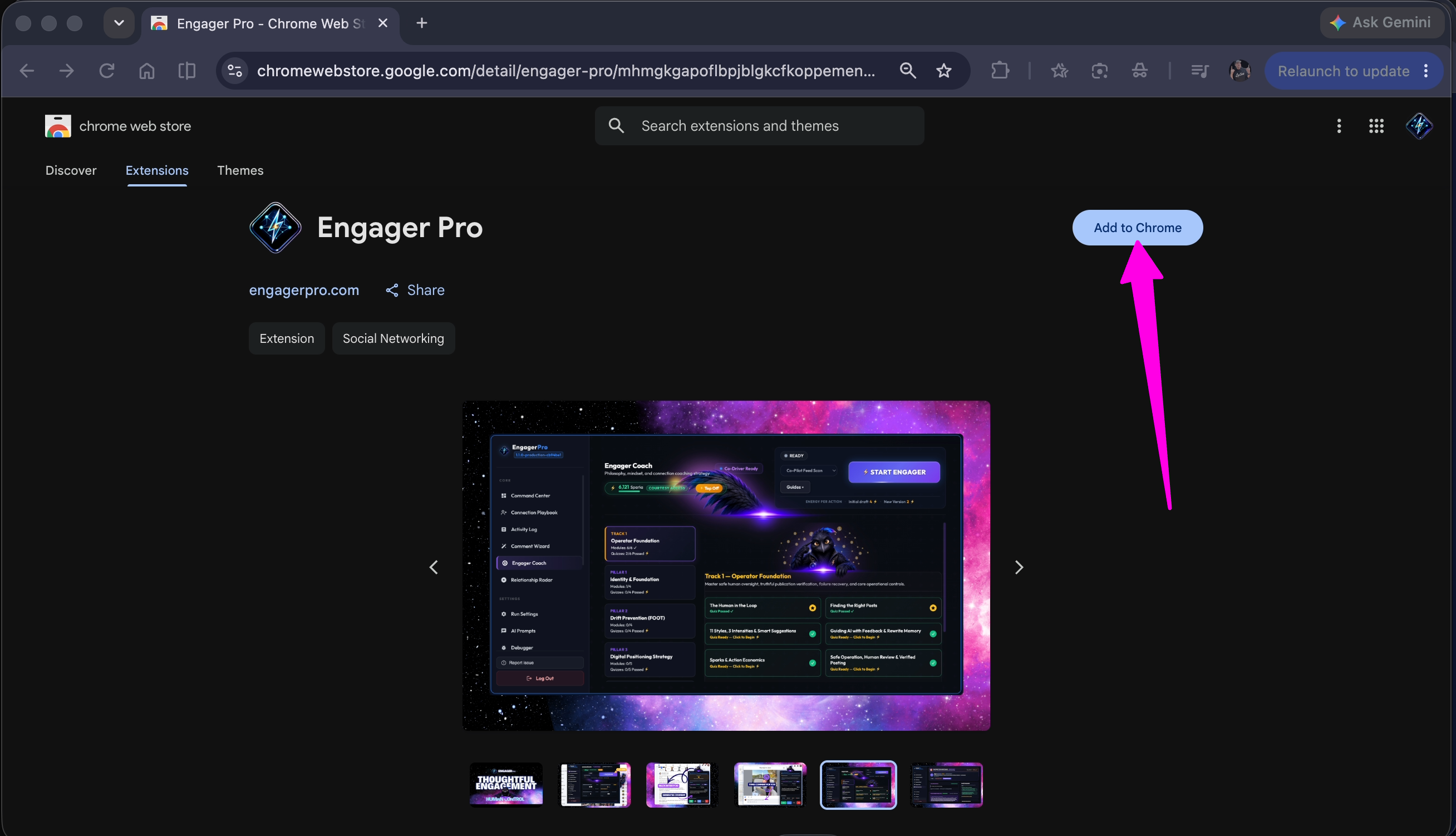
Open the official Chrome Web Store listing in your desktop browser. Choose Add to Chrome (or your browser’s equivalent), then confirm the installation.
Google Chrome is recommended. Engager Pro also supports desktop Microsoft Edge, Brave, and Arc.
Visit engagerpro.com/download on your computer or laptop to install. Mobile devices, Safari, and Firefox aren’t supported. You can install on more than one supported computer.
02
PIN
Keep Scout within reach.
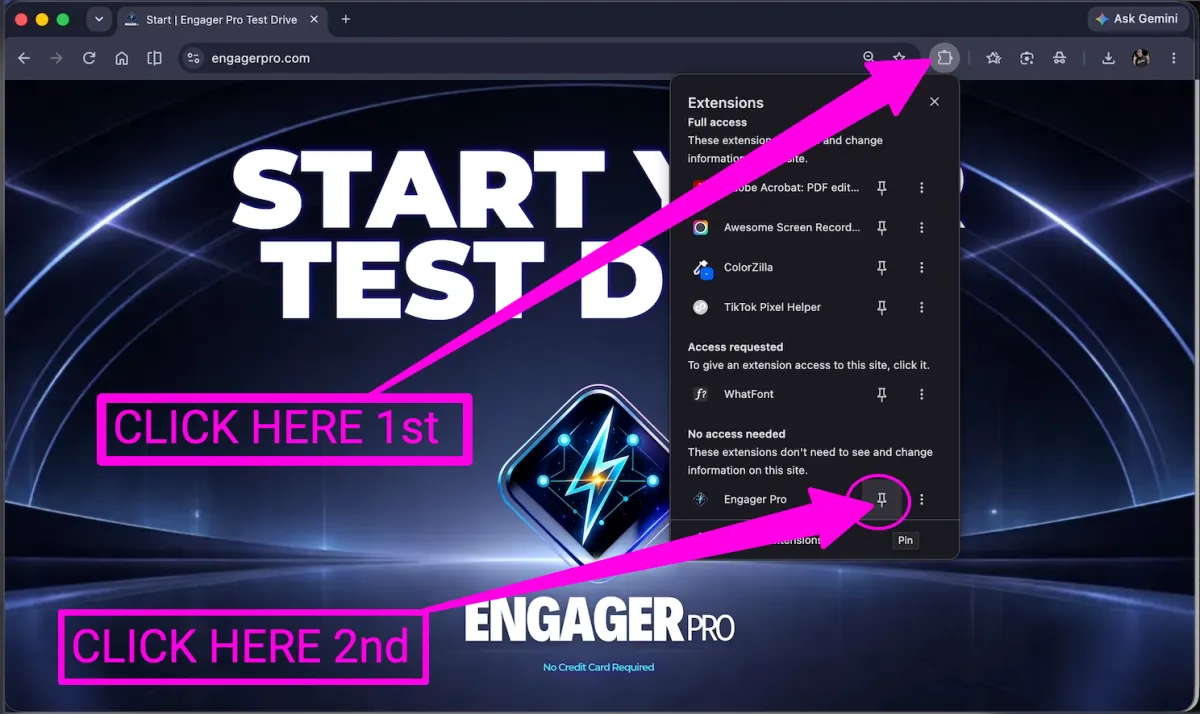
In Chrome, click the puzzle-piece Extensions icon near the address bar.
Find Engager Pro and click its pin icon.
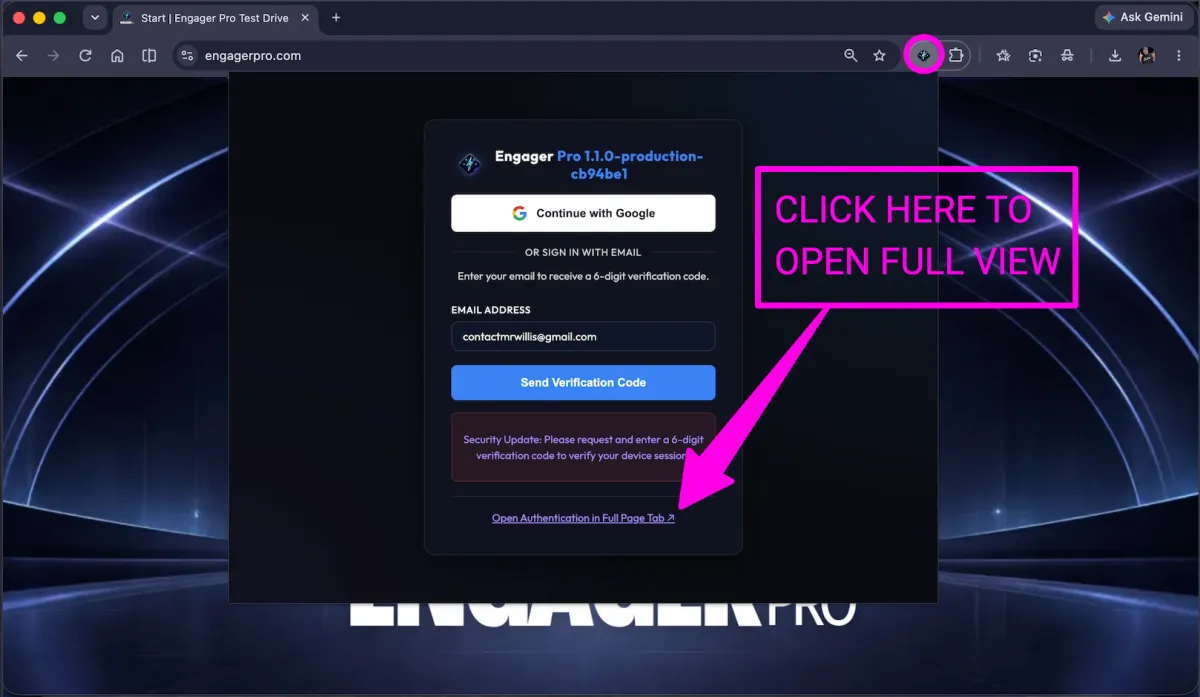
Look for the blue diamond lightning icon on your toolbar. Click it to open Engager Pro.
Other supported browsers may label their toolbar controls differently.
After installing, open Extensions, then pin Engager Pro.View full size ↗Can’t find the extension?
In Chrome, open the three-dot menu → Extensions → Manage Extensions. Or type chrome://extensions into the address bar. Confirm Engager Pro is installed and enabled, then return to the Extensions menu to pin it.
03
SIGN IN
Your account. Your voice.
Click the Engager Pro toolbar icon. Use the same email address you used at signup so you reach your test-drive account.
Choose Continue with Google using that account, or enter your signup email and select Send Verification Code.
For email sign-in, retrieve the six-digit code from your inbox and select Verify & Continue.
Review the first-time Covenant & Terms prompt. Once accepted, you’ll enter the Command Center and its guided tour.
A little more room to sign in
Select Open Authentication in Full Page Tab ↗ below the login form. It keeps the sign-in page open while you check your inbox.
Select Open Authentication in Full Page Tab for a roomier sign-in experience.View full size ↗Need another verification code?
Use Send a new code in the extension. If you entered the wrong address, choose Change email and enter your signup email.
YOU’RE READY
Start with one real conversation.
Open Facebook on your computer and make sure you’re signed in. Explore the guided tour, then visit Engager Coach → Voice Calibration to help your comments sound like you.
Find your people. Explore Signal Maps and Relationship Radar.
Make it meaningful. Create thoughtful comments and keep people in Orbit.
Bring your ideas to life. Explore Connection Cards and Content Studio.
GET HANDS-ON HELP
You don’t have to figure it out alone.
Bring your questions. We’ll help you get installed, find your voice, and start connecting.